
This is a simple guide that will help you transfer data from your old smartphone (Android/iOS) to a new one using Mi Mover app.
- Place your old and new phones next to each other and turn on WiFi on both.
- Download and install Mi Mover on both phones.
- Open the app on both phones.
- Tap on "Agree" and give the app all permissions it requires:
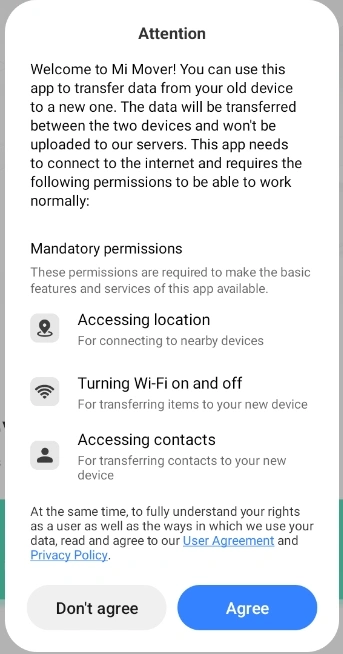
- Then you'll need to grant a few extra permissions on the old smartphone. Select "Old".
- Give access to call logs, contacts and other data the app asks you to do.
- Next, allow floating windows:
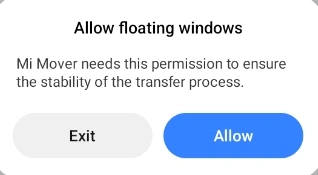
- Select Mi Mover and enable "Allow display over other apps":

- Then, you'll have to give Usage access and Files access.
- Finally, you'll be asked to Allow changing system settings. Click "Continue" and enable this option for Mi Mover:

- Tap on "Old" again and you'll get the following:
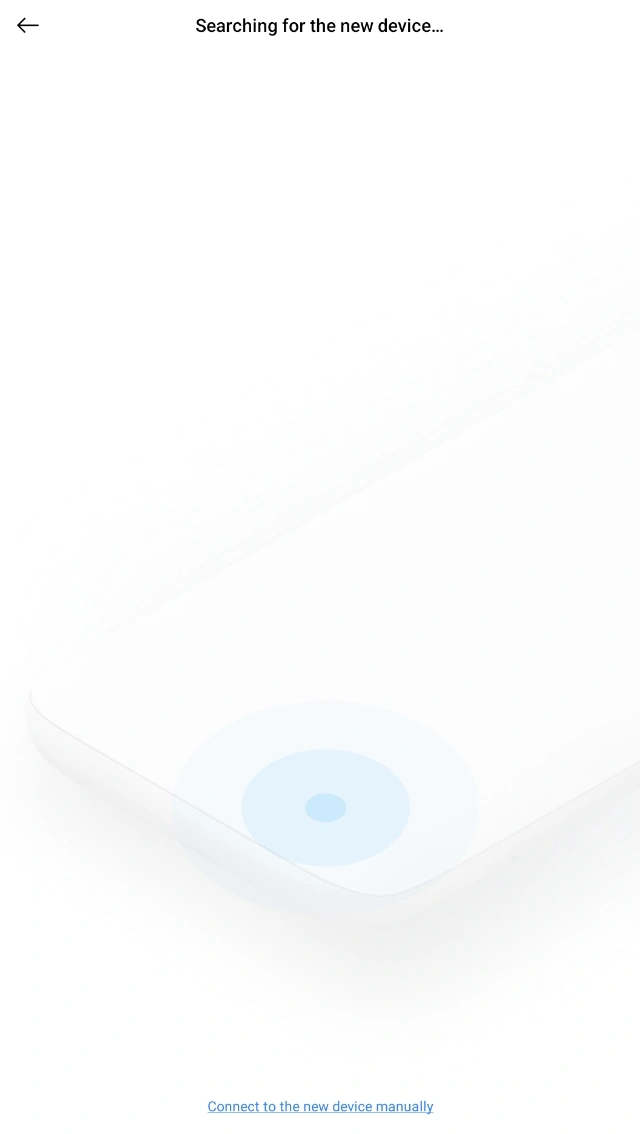
- Wait till the app finds your new phone. When it's done, select "New" on the new phone and select old device model from Xiaomi (Xiaomi and Redmi), Android (Huawei, OPPO, vivo, and more), or Apple (iPhone).
- Grant the necessary permissions.
- Press on the name of the new phone on the "Select new device" screen on the old phone and wait till Mi Mover connects with it.
- Then select the data you want to transfer to the new phone.
- Tap on "Send".
- Data transfer will take some time. You can see what was transferred if you tap on "View report" button on the new phone.
Congratulations! You have successfully transferred your data to your new phone!